
Now Playing for Mixxx
Mixxx on screen. Automatically.
The free, open-source DJ app gets a free overlay to match. Now Playing reads Mixxx with nothing to configure.
Screenshot: Mixxx and Now Playing side by side on one desktop. Mixxx has a track playing; Now Playing shows that same track detected, with artwork, title, artist, BPM, and key.
How it connects
How Now Playing reads Mixxx
Now Playing reads the local history database Mixxx writes as you play. There's nothing to switch on inside Mixxx: once it's installed and you've played a track, Now Playing finds the database and starts reporting titles, artists, BPM, and key. Album art is read from each audio file's embedded artwork tag.
From there it's the same everywhere: tracks flow to your overlay, Twitch chat, files, and every other output the moment they go on air.
What works
- Mixxx 2.2 or higher on Windows and macOS
- Title, artist, album, BPM, key, and duration from the Mixxx library
- Album art from embedded file tags (ID3, FLAC, M4A)
Known limits
- Mixxx must run on the same computer as Now Playing
- Files without embedded artwork show no overlay image
Setup
Three steps, then forget it's there
- 1
Download Now Playing free and open it
- 2
Play a track in Mixxx and the database is found automatically
- 3
Add the overlay to OBS and play
The overlay updates itself for the rest of the set.
VIDEO (60–90s, muted with burned-in captions, poster frame): screen recording of the whole Mixxx setup, done once at real speed — open Now Playing, connect Mixxx with the exact settings visible on screen, add the overlay to OBS, then play a track and watch the overlay fill in by itself. Ends on the live overlay, no narration needed.
In the app
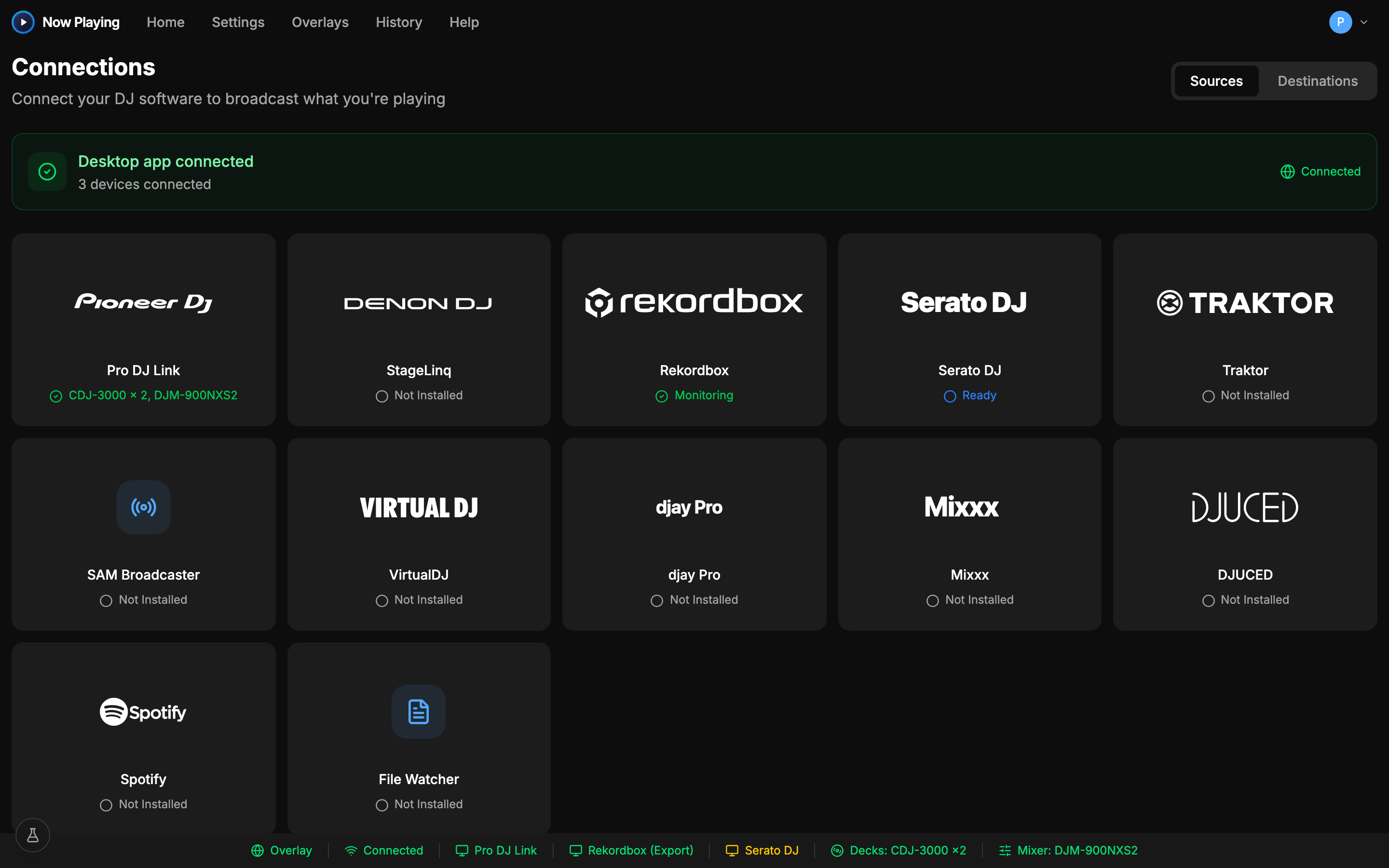
Connected in one screen
Put Mixxx on your stream
Download free, connect, and the overlay is live in minutes. Free includes overlays and file output.
See exactly what's captured in the help center